---
updatedAt: 2026-03-31T14:11:31.000Z
agentTools:
projectIndex: https://welcome.zoey.com/llms.txt
---
# Mobile Barcode Scanning
## How it works
Mobile Barcode Scanning allows you to scan barcodes on products using an iOS or Android device. Scanning a code will allow the mobile app user to quickly pull-up details about the product or to add to the Cart.
Scanning can be initiated from the Home, Products and Cart Screens.
## Adding Barcodes for your Products
In the Zoey Web Admin, go to **Products > Attributes** and create an attribute called "Barcode".
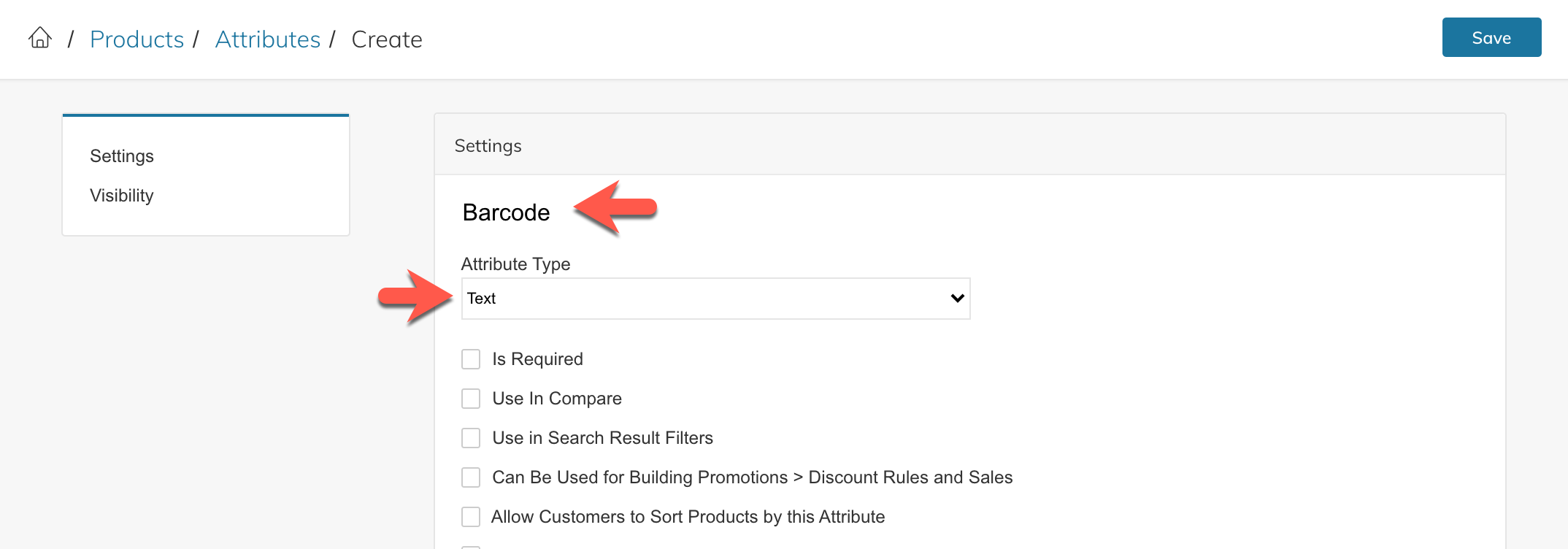
Then you can add Barcodes on each product or use a CSV import to add Barcodes to your products (example format below).
|
sku
|
barcode
|
|
ABC-123
|
92304829384910293482349
|
|
ABC-456
|
54930845928349102395849
|
Once uploaded, the next time your mobile app updates product information it will load the barcodes and allow scanning.
## Using a Bluetooth Scanner
Zoey supports Zebra, Socket and most other Barcode Scanners that can connect to your mobile device via Bluetooth.
#### To use:
* Connect scanner via Bluetooth to your device,
* Ensure the device is in **HID (keyboard emulation)** mode (if applicable)
* Open the Zoey App, and with the Home or Cart screens open, simply start scanning with your bluetooth scanner.
Any SKU specific options will appear automatically on your mobile device screen.
## FAQ
**Do I have to upload Barcodes?**\
Yes, after creating the Barcode attribute you will need to add barcode IDs for each product you want to allow scanning.
**What Barcode types are supported?**\
We currently support the following: .qr, .code128, .code39, .code93, .itf14, .ean8, .ean13, .pdf417
**How can I handle Configurable Product Barcodes**\
If you have a 'master barcode' for a configurable product, upload it to the configurable product. Then when scanning the app will take you to the product page where you can enter quantities of the variations you would like to add.